Notes
Notes are private snippets you keep for later posts: a thought on a walk, a passage from a book, a photo of a page, a memo you dictated. Only you can see them. You capture them in a few taps, sort them with tags and sources, and put them into a post from the post editor.
Capturing a note
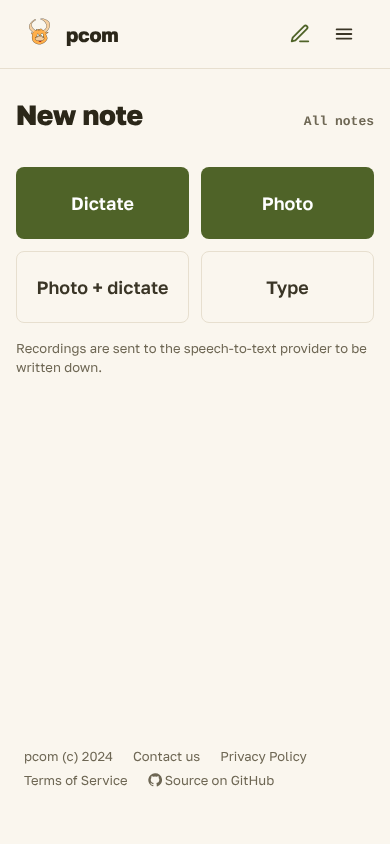
Open Capture in the Notes section of the Controls page, or go to /controls/notes/new, to get the capture
page (Notes in the top bar opens the list). On a phone it is the page to keep open or to install (see Notes on a phone).
- Dictate records a memo. Press Stop when you are done: stopping saves it. The screen stays on while you record, because a phone's browser stops recording when the screen goes dark.
- Photo takes a picture with the camera, and saves it as a note. Photo + dictate takes the picture and records a voice caption into the same note.
However a note is made, it is text with markdown, as a post is: a photo is an image in that text, with whatever you typed, shared or dictated under it as its caption. Open the note to add another photo with the image button, or to remove one.
- Type opens a box for the text. Save note saves it.
There is no Save step for the others and no prompt for tags: a capture is a note as soon as it is made. Tags, text and cleanup can wait until you sort your notes. Dictate is shown only when the site has a speech-to-text provider; without one, Photo and Type still work.
Add ?start=voice or ?start=photo to the address to start a mode as the page opens (the installed app's
shortcuts do this). Where the browser does not let a recording start without a tap, the page shows one big
button instead.
Saved on the phone. A capture is written to the phone first. With a poor connection the page says Saved on the phone, uploading… and changes to Saved once the server has it; the capture keeps the time it was made, not the time it arrived, so your list stays in the order things happened.
Last capture. The card under the buttons shows the last capture, with a thumbnail of its photos while they are still on the phone, and its status. Delete removes it, also while it is still waiting to upload. The capture page's photos are scaled down on the phone before upload, which keeps them quick to send.
The list
Notes lists your notes, newest first, with a box at the top to jot one down:
- The text has the same toolbar as the post editor, so a photo can go in with the image button. Ctrl+Enter or Add note saves it.
- Tags next to it, separated by spaces or commas, with or without
#. Your recent tags are under it: a tap adds one. - Source, a list of your sources, or No source.
- Upload recording picks a recording on your device and makes a note of it, which shows Transcribing… until its text is there.
Under the box are:
-
Search, one box for tags and text:
#essayshows only the notes tagged essay;-#doneleaves out the notes tagged done;- any other word is looked for in the text of your notes, in any case.
They combine:
#essay -#done streetsis the notes tagged essay, not done, that mention streets. A tag both asked for and left out is left out. Tags are matched in any case, and a#that isn't followed by a tag (such as#2024) is searched for as text. The parts of the search show above the list as chips, a left-out tag marked not; the × on a chip drops it. Your tags are under the box, most used first: a tap adds one to the search, and so does a tap on a tag of a note. The search is in the address, so a filtered view can be bookmarked. -
Sources that have notes, each with the number of its notes. Selecting one shows only its notes.
Each note shows its text, all its tags (the ones you set and the #words of its text; a tap adds one to the
search), its source, and whether it has been used in a post. The pencil opens the note
to edit it, and the bin deletes it, after you confirm.
Notes attached to a post are left out of this list, since it is for new notes. The All notes switch under the search shows them too. Each note shows the posts it is attached to, as links, with a × that takes it off that post for good, so a tag attached to the post later doesn't bring it back. A post's link filters the list to that post; the Notes of chip names the post and links to its Notes tab, and its × removes the filter. Attach to post… on a note lists your 10 most recently edited drafts and posts; older posts are attached from their editor. When the search names a tag, Attach all notes tagged #x attaches every note with that tag to the post you choose, and every note you tag #x later joins it too.
Editing a note
The edit page saves the text, tags and source by itself shortly after you stop typing or choose. The text has the toolbar, photos included. Under it:
- Source is where the note comes from, chosen from your sources, or No source. Sources are added and renamed under Tags and sources.
- Add recording, on a note without one, attaches a recording from your device; its transcript is added to the text.
Tags
Tags are free words. You can set them in three ways:
#wordin the text. Any#wordin a note is a tag, as well as the ones in the Tags field. Editing the text edits the tag, and its chip says (written in the text). To remove that tag, remove the#wordfrom the text.- Selection. Select several notes and press Tag to add tags to all of them.
- Speech. Say "hashtag word" while dictating and the transcript writes
#word.
Tags and sources (the link at the top of the list) is where tags are renamed, since free-form words drift. Renaming a tag changes it on every note that has it; renaming it to a tag you already have merges the two.
Sources
A source is just a title: a book, an article, a talk. On Tags and sources, Add source adds one (adding a title you already have finds it; case and spacing don't matter). Each source shows how many notes come from it and a pencil: Edit turns the row into a form with its title, Save saves it in place and Cancel puts the row back. Renaming a source to the title of another merges them: its notes move to the other source.
Several notes at once
Tick the boxes of several notes and a bar appears with Tag, Source and Delete. Source gives the selected notes the source with the title you type (made if you have none by that title), and an empty title clears it. Delete asks first and says how many notes and recordings it removes.
Quotes
A quote is a note with a source: the passage of a book or an article.
- Share a passage from the Kindle app, your reader or a text app to pcom. The text arrives as it was selected, with no title or author, so pcom stores it as a quote: a blockquote, with a link kept as a link.
- A share can't set tags or a source. Its tags are the
#wordsin its text, and its source comes as for any quote. - Type or paste a passage on the capture page. It is stored as typed.
- The source of a quote is the source of your previous note with one, if that was captured within the last twelve hours (by default). Otherwise the quote has none; choose it on its edit page, or select several notes and press Source. A plain note or a photo can be given a source the same way.
- Sources need little setup. Quotes from one book land in one group, found by its title. A source can be renamed on Tags and sources, and renamed into another to merge them, for the rare share that spells a title differently.
A photo of a page stays with its quote, so you can check the recognized text against it. The text is editable like any other.
Voice notes
A recording is written down by a speech-to-text service that the site uses. The capture page and the editor say so next to the record button: a recording is sent to that service, and nothing else of the note is.
- A note with a recording shows Transcribing… while it waits, then its text appears in place. The text is the note's text, and you can edit it like any note. Only the recording is kept as the original.
- If the text could not be made, the note says Transcription failed — try again. and the note keeps its recording.
- The language is detected for each recording. Nothing is set in advance, so a memo in another language comes out right.
- A very short or mixed-language memo can come out in the wrong language. Transcribe again as… on the note (in the list or on its edit page) sends the recording once more in the language you pick. It counts against the daily minutes, and since it replaces the note's text, it asks first when the note has text.
- The transcription minutes are limited per day. A limit reached says so; the minutes count over the last 24 hours.
- A recording is at most ten minutes long by default.
Deleting
Delete removes a note for good. The confirmation names its recording when it has one, and the posts it is attached to, which lose it and keep their text. There is no trash. The text you inserted into a post stays there, photos included: the files of a note's photos stay on the server, as the images of deleted posts do.
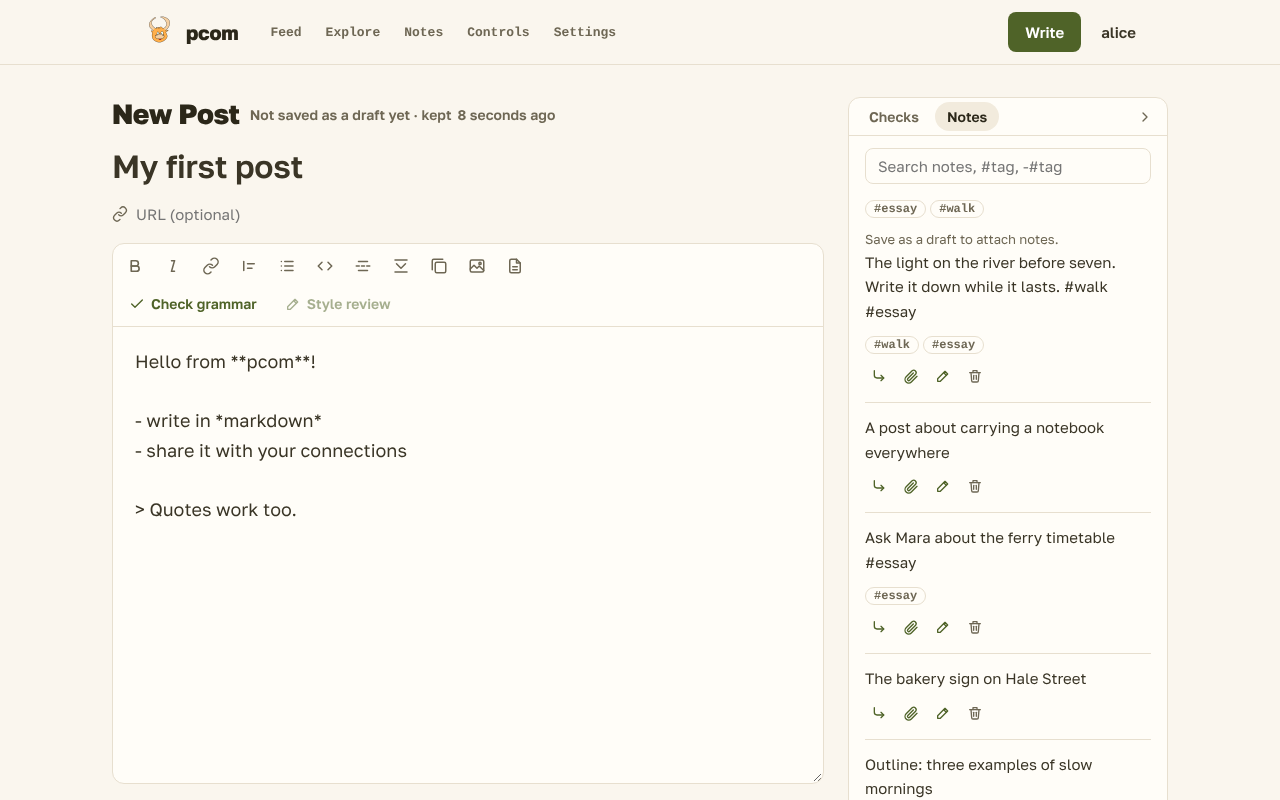
Using notes in a post
In the post editor, the sidebar beside the text has a Notes tab (see Writing for the sidebar). It has a search box that works like the list's; under it are your most used tags, and each note shows its tags: a tap on any of them adds it to the search, so a tag whose name you forgot is one look away. A This post | All notes switch under the search opens on This post when the post has notes; the line above the notes says which you are looking at, and the search keeps the switch as you chose it. Each note has Insert (at the cursor), Attach (or Detach, for a note already attached), Edit (the note in a new tab) and Delete. Detach on a note that one of the post's tags brings hides it from this post. With the search on a tag, Attach all notes tagged #x attaches them all. A quote goes in with its attribution, such as — Title, and a photo as the image it is in the note. A note with nothing in it yet, a recording still being transcribed, can't be inserted. Inserting a note also attaches it to the post.
A new post that is not yet saved as a draft cannot take attachments: Attach and Attach all notes tagged are off there, with the note Save as a draft to attach notes, and turn on once the draft is saved, without a reload.
The text is copied into the post; the note stays as it is. Changing the post later does not change the note.
On the post page
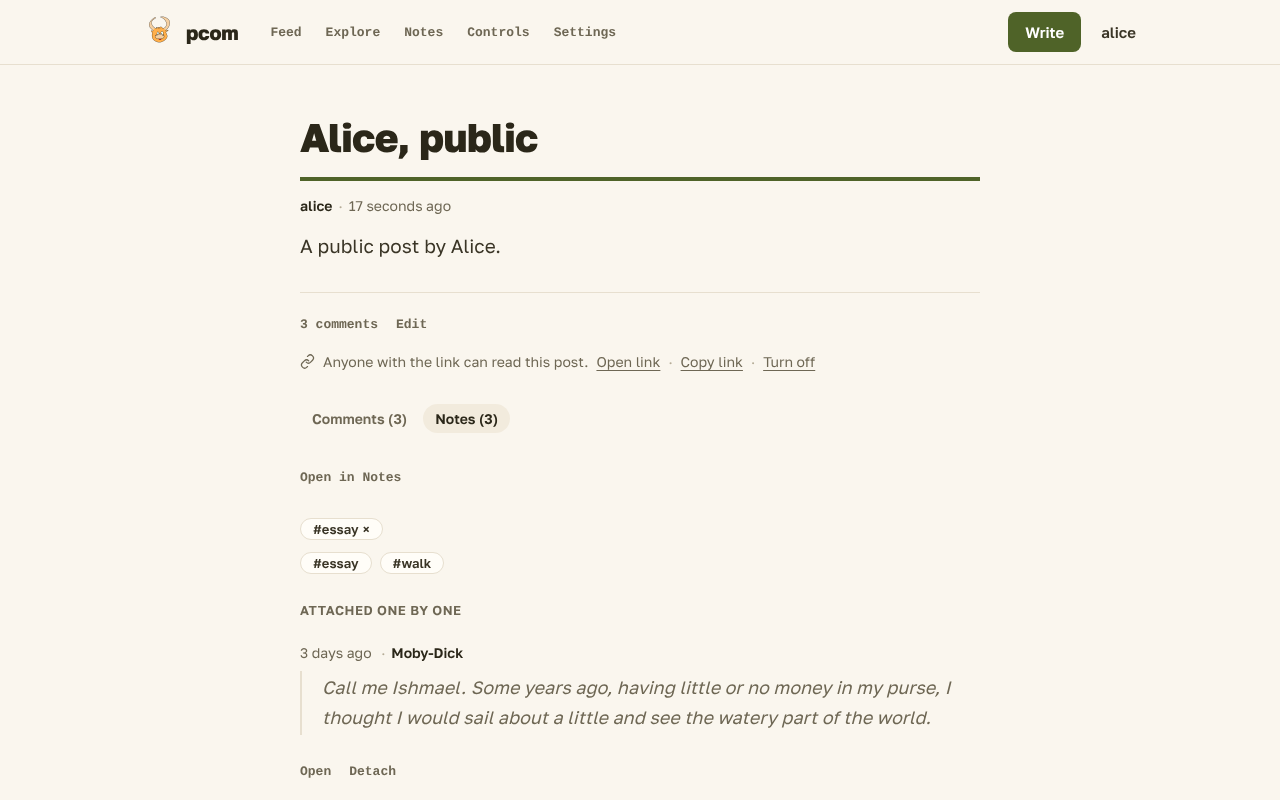
The post page has Comments (n) and Notes (n) tabs, for you alone, with comments first. A draft opens on its
notes unless the address says #comments. The tab is in the address: /posts/<id>#notes opens the notes, so a link or a reload keeps them. The notes attached to the post are grouped by how they came,
one by one or by tag, and the tag bar above them filters them. Each has Open and Detach; Detach on any note
that one of the post's tags carries hides it from this post without removing the tag, and the tag has its own Detach.